

 Loading...
Whatever you attempt with your iPhone Contacts synchronization experiments, it's definitely a good idea to Backup iPhone Contacts to PC first
Indeed, every situation is different and even the most proven procedures can fail due to specific configurations
Accidental iPhone Contacts deletions are not uncommon, they are actually quite frequent, for example during synchronizations with Outlook or Gmail, and always regrettable and disastrous
Hereafter is the most standard procedure on How to Backup iPhone Contacts to Computer
Backup iPhone Contacts
- Open iTunes and connect your iPhone
- Go to Start -> Programs -> Accessories and open the Address Book
- In iTunes, click your iPhone in the "Devices" section on the left, then click the "Info" tab
- In "Contacts", check "Sync Contacts with" and select "Windows Address Book"
- Select "All Contacts"
- Finally, click "Sync" in iTunes lower-right corner
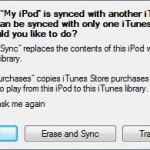
You will be asked whether to Merge or Replace
Make sure to select "MERGE", otherwise Contacts on your iPhone would be deleted
All your iPhone Contacts should now be safely backed up in your Windows Address Book
( Note that from then on, any contact added to your iPhone will automatically be added to your Windows Address Book and the other way around )
Pretty neat, huh !
At this point, you can also sync iPhone Contacts with Gmail or Yahoo!
For even more safety, you can Backup Windows Address Book Contacts to a .CSV file ( that doubles security, which is never a bad idea when it comes to protecting such precious information as your iPhone Contacts )
- In Address Book, go to File -> Export and click Address Book ( WAB )
- Locate and select the Windows Address Book file you wish to export to and hit the "Open" button
Save this .CSV file to a safe place such as a USB Flash drive and / or an external hard drive
You can even send it to yourself as an attachment to an email
Notes & possible issues
Once done with the above tutorial, you can proceed to
All your iPhone Contacts got deleted by an unwanted synchronization with Outlook or Gmail ?
They might not be lost forever
Let's try to Recover iPhone Contacts
Restore iPhone Deleted Contacts
- In iTunes left panel, right-click on your iPhone in the "Devices" section and select "Restore from Backup"
It might allow you to Retrieve iPhone erased Contacts, if it doesn't, then we are out of hints
Good Luck !
Notes & possible issues
- This solution works for both Mac and PC

Mike Johnson
Founder and Editor of sync-iphone.com has a sincere desire to provide readers with honest and useful solutions for their iPhone
More about him on Google+





looking at directions to backup contacts from iPhone to PC, and problem is when I go to Start, Program, Accessories on my PC there is no such thing called Address Book. Now what? Thx.
Dear Nelly,
On Windows Vista, click Start -> All Programs -> Windows Contacts
On Windows 7, click Start and type Windows Live Mail in the search field
Hi . . . your instructions are very clear, thank you. But it’s not working for me. I’m following the steps, but my Windows Address Book remains empty. My iPhone contacts are not copying into WAB, even though iTunes appears to be going through all the syncing steps.
I really need to back up my contacts because I need to set up my iPhone as a new phone to get rid of my giant yellow “Other” category–a whole other problem I won’t go into here.
I don’t know what I’m doing wrong, and I can’t figure out why it’s not working.
Dear Robin,
You can try this alternate method instead Backup iPhone Contacts to .CSV
I did the sync with my contacts and gmail through the exchange. My question is this, if I remove exchange will I lose my contacts? I ask because Exchange does not allow me to see my sent folder from gmail. Awaiting your response.
Why not All my contacts move to Windows Address ! I have some other which are still in iCloud or a see it on my iPhone, but not all them was transferred to my Computer, even I select “All Contacts” on iTunes???
Dear Dor,
Try this
– Export all contacts in the Addressbook App as a VCard
– Make sure you have another backup
– Delete all contacts in your Addressbook app
– Finally, drop the Vcard export (not the Addressbook archive, it wouldn’t work) onto the iCloud group in your Addressbook Windows on the left
Everything should sync all fine now
Found that
Edit iPhone Contacts
Interesting
Is there a way to sync my contacts from outlook using their “file as” heading rather than the first and last name of the contact?
Thank you!
I just want to take my calendar from my iPhone 4 and put it on my google/gmail calendar so I can sync it with my Google Nexus 7. Is there an easy way to do this? Thank you!
I followed all the steps.. but there’s zero contacts when I opened up my windows contact.
hi, I have a problem. I had 2 seperate directory in my droid phone, one that was main directory that synced to my job server and another one that synced to my gmail account. I got iphone 5 now. I got all the contects back, but gmail directory won’t sync to icloud, other directory would. Can you help me? Thanks in advance.
How do I get my contacts to show up under the on my iphone tab in my contacts? It currently shows none, only under the group yahoo